Frequently Asked Questions (FAQs)
Edit Activities or Resources in Your Course
If you are a Teacher or Manager of a PPN Learn course, you will be able to edit the content for that course.
To edit a course, go to the course > select "Turn editing on" > you will now be able to edit your course.
You may edit, remove, or add a "Section" in a course; you may also edit, remove or add a learning "Activity or resource" in a section. (Note: this does not apply to a single-activity learning product, e.g. a module, a video, a forum, etc. These single-activity learning products do not have sections or multiple activities). This screenshot shows all activities or resources available:
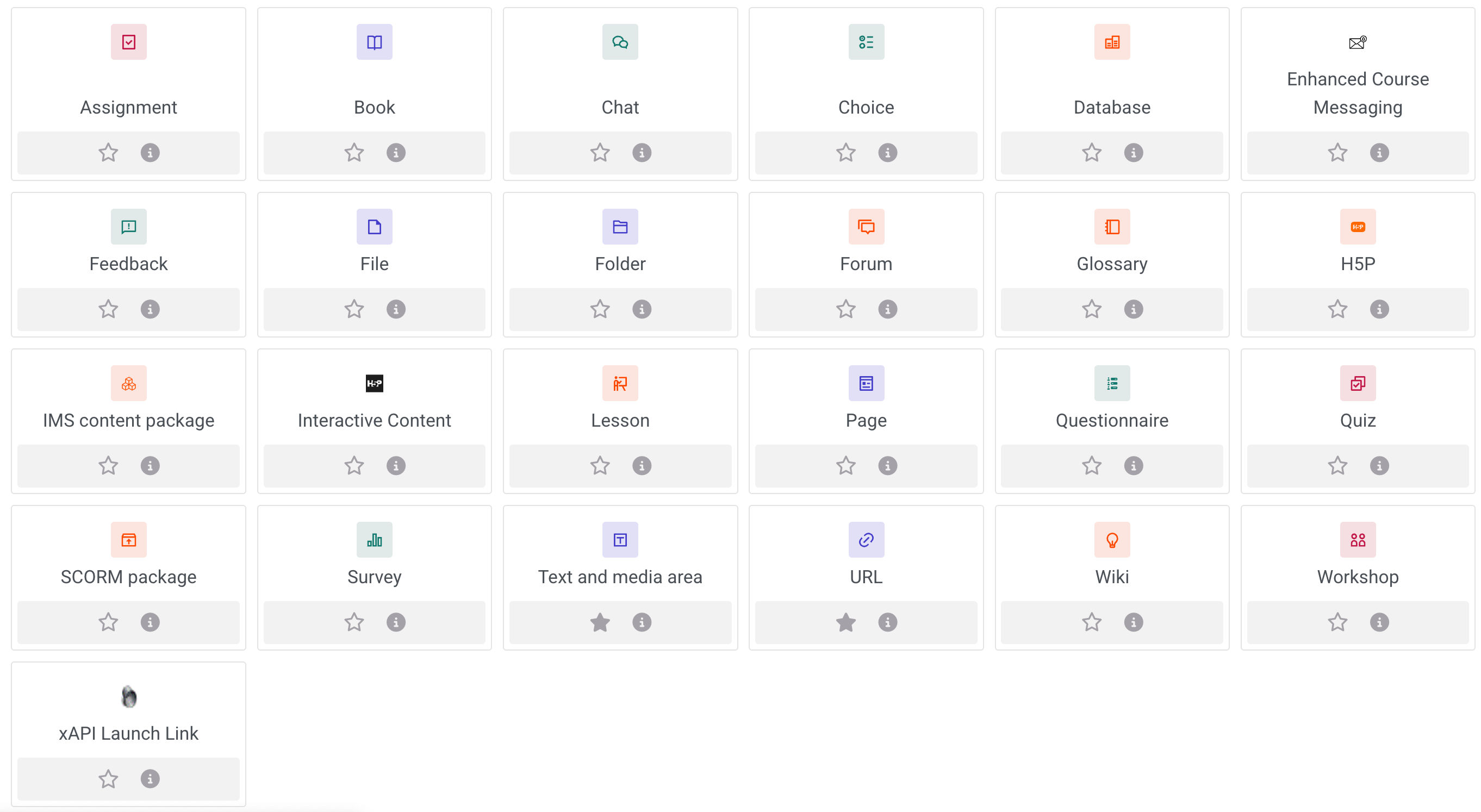
We will now introduce some common activity or resource types that you may find useful for your course.
Text and media area
This is the foundation of your course and the most commonly used resource type. You may use this throughout your course to input instructional texts, embed decorative images, add hyperlinks, etc.
File
If there is a file you'd like the students to review or download, use this resource type. For example, a PowerPoint slide, a template, a PDF, etc.
URL
If there is an external resource you'd like students to review, use this activity type. For example, a YouTube video, an external website, etc.
Please note that by using the URL activity, PPN Learn can keep track of the student click data. If student click data is not important to you, you may simply hyperlink to external resources in a "Text and media area".
As a best practice for external links, always select "Open in new window" in the setting. For students, this will help their user experience by opening the URL in a new tab.
Assignment
Use this activity for graded assignments. For example, a paper writing assignment, a written attestation, etc. Students can complete the assignment by either: 1). writing content in text box, or 2). uploading a file. You will then be able to grade and provide feedback on their assignment all in one place.
If you'd like students to complete assignments but do not need to track their completion or grades, you may simply put step-by-step instructions in a "Text and media area".
Forum
Use this activity to establish asynchronous student discussions or Q&A. You may use multiple forums within one course, designating each for a different purpose. For example, topic discussion forum, assignment discussion forum, course feedback forum, etc.
As a best practice, we recommend the Teacher or Manager or a course to start a thread rather than leaving the forum empty when publishing the course.
Quiz
Use this activity to develop a graded quiz. You are able to view and grade student responses in PPN Learn.
Questionnaire
Use this activity to develop a ungraded survey. You are able to collect and view student responses in PPN Learn.
You may also see another"Survey" activity type. However, "Survey" activity type is for some specific, non-editable surveys, which do not apply to most use cases.
Interactive Content
Use this activity to develop interactive, multimedia modules in H5P. An example course with different Interactive Content (H5P) modules. You may also see another "H5P" activity type. However, please avoid using "H5P" activity as it is currently experiencing technical issues.
You may use this activity if you'd like more variety in how information is presented in a course. However, this activity currently has limited tracking capability.
SCORM Package
Many interactive, multimedia learning modules are published to a format called SCORM. This format typically allows for more user tracking. An example SCORM Package course.
If you are interested in uploading a SCORM Package to your course, please reach out to your PPN Education team point person for more information.
If you have any other questions about editing your course, please reach out to your PPN Education team point person. They can also help you determine the most suitable activity or resource type for your situation.